---
title: "Tip of the Week: How to Download Your Favorite Windows 10 Lock Screen Images - Get a Free Network Security Consultation in South Florida"
description: "For this week's tip we show you how to download your favorite Windows 10 lock screen images."
url: "https://www.l7solutions.com/blog/tip-of-the-week-how-to-download-your-favorite-windows-10-lock-screen-images"
date: "2026-06-20T16:35:04+00:00"
language: "en-GB"
---
## Get a Free Network Security Consultation in South Florida
Get a free network security consultation today from L7 Solutions. We are your partner for managed services & IT support in South Florida and beyond. Call today.
[ Categories ](https://www.l7solutions.com/blog/categories "Categories")
[ Tags ](https://www.l7solutions.com/blog/tags "Tags")
[ Categories: All Categories ](https://www.l7solutions.com/javascript:void(0); "Categories")
Search...Suggested keywords
[ x ](https://www.l7solutions.com/javascript:void(0);)
# Tip of the Week: How to Download Your Favorite Windows 10 Lock Screen Images
[LSeven Solutions Blog](https://www.l7solutions.com/blog/categories/blog) [How to](https://www.l7solutions.com/blog/categories/how-to)
[LSeven Solutions Admin](https://www.l7solutions.com/blog/blogger/l7-admin)
Wednesday, 25 January 2017
[ 0 Comments ](https://www.l7solutions.com/blog/tip-of-the-week-how-to-download-your-favorite-windows-10-lock-screen-images#comments)
[  ](//www.l7solutions.com/images/easyblog_shared/January_2017/1-25-17/windows_10_images_400.jpg "Tip of the Week: How to Download Your Favorite Windows 10 Lock Screen Images")
What happens when you lock your Windows 10 PC? Unless you’ve changed your lock screen settings, you’re greeted with a dynamic background image that changes every day or so. Sometimes, Windows will show you an image that’s so good that you’ll want to download it so you can look at it more. But how does one go about this? For this week’s tip, we’ll show you how!
Unlike previous versions of Windows where lock screen images are pulled from a local folder with a few ho-hum stock photos in it, Windows 10 gets its lock screen images from a built-in feature called Windows Spotlight.
Unfortunately, due to the way that Windows Spotlight is set up, downloading an image from Spotlight isn’t as easy as opening a folder and dragging and dropping what you like. However, despite the fact Windows Spotlight isn’t very user friendly, navigating the feature to locate and download the photo you want is possible.
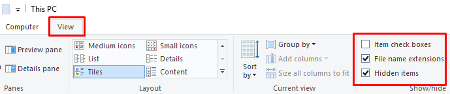
To get started, open Windows Explorer and click on the **View tab** (located to the right of Computer). Next, be sure to check both boxes for **File name extensions** and **Hidden items**.
Now you’ll copy and paste the file directory provided below into the Windows Explorer file path.
**C:\\Users\\username\\AppData\\Local\\Packages\\Microsoft.Windows.ContentDeliveryManager\_cw5n1h2txyewy\\LocalState\\Assets**
In the file path, replace “username” with your user name and then hit **Enter**. This will take you to a window populated with files. These are the files that have been utilized by Windows Spotlight.
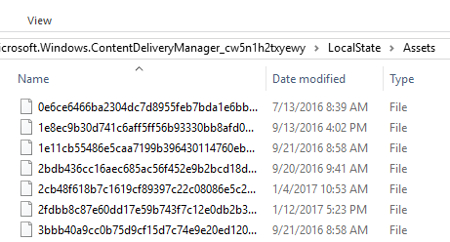
In order to put the photos at the top of this list, select the **Size** tab.
Next, make a new folder somewhere on your drive for you to move these Windows Spotlight images to, like on your Desktop or Pictures, and then open your new folder.
You will now want to move these photos to your new folder so you can sift through them and use them for however you please. Do this by selecting all the files greater in size than 100KB. Perform this task by **selecting the file at the top of the list**, then, while holding the **Shift** key, scroll down and select the one file that is greater than 100KB. With 30 or so files selected, you will next copy these files (**Ctrl+C**), and paste them in your new folder (**Ctrl+P**).
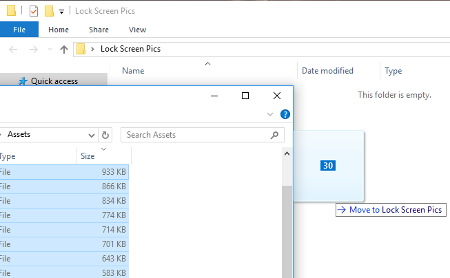
This move will bring up a prompt by Windows Security.
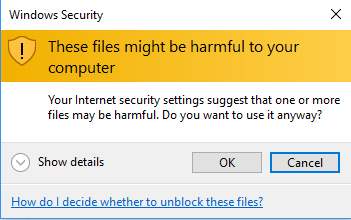
Go ahead and select **OK**. You don’t have to worry about these files harming your computer, since they’re already on your computer.
Now, with the files copied in your new folder, you’re going to want to rename each one and add a file extension to them so you can see what they are. Do this by **right clicking** the file and then selecting **Rename**.
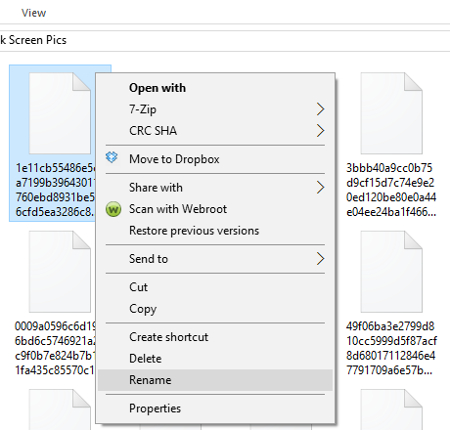
By renaming the file to something simple like **1.PNG** and then selecting **Enter**, you will see the icon for the file change to that of a photo. Also, go ahead and click **View > Large** icons if this makes renaming files more manageable for you.
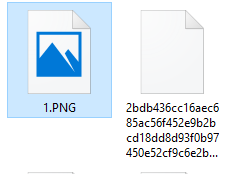
With the file format changed, go ahead and **double click the file** to open it and reveal the image. With the image revealed, go ahead and name your file accordingly. Also, with the file saved on your PC, you can now access this folder and use these photos for however you fancy; like for your PC’s wallpaper, sharing over social media, memes, or whatever else you can think of.
Admittedly, this is a lot of work to go through in order to locate and isolate a photo that’s caught your eye. Although, when it comes to great art, they say that procuring it is half the fun!
For more great PC tips and tutorials, subscribe to COMPANYNAME’s blog.
[ ](https://www.l7solutions.com/javascript:void(0);) [ ](https://www.l7solutions.com/javascript:void(0);) [ ](https://www.l7solutions.com/javascript:void(0);)
[ Pay-as-You-Click vs Pay Per User. Which Software M... ](https://www.l7solutions.com/blog/pay-as-you-click-vs-pay-per-user-which-software-model-is-better-for-your-business)
[ 3 Easy Ways to Get Your Business Started With Auto... ](https://www.l7solutions.com/blog/3-easy-ways-to-get-your-business-started-with-automation-technology)
About the author
[  ](https://www.l7solutions.com/blog/blogger/l7-admin)
[LSeven Solutions Admin](https://www.l7solutions.com/blog/blogger/l7-admin)
[ ](https://www.l7solutions.com/javascript:void(0); "Subscribe to updates from author") [ ](https://www.l7solutions.com/javascript:void(0);) [ ](https://www.l7solutions.com/blog/blogger/l7-admin)
Welcome to LSeven's Blog! Here we will share useful tips and tricks for Computers and Information on Our IT Services!
Author's recent posts
[More posts from author](https://www.l7solutions.com/blog/blogger/l7-admin)
[ Tuesday, 30 June 2026 Stop Managing Metal, Start Managing People: A Guide to Hybrid IT ](https://www.l7solutions.com/blog/stop-managing-metal-start-managing-people-a-guide-to-hybrid-it)
[ Saturday, 27 June 2026 Free AI is Not Free: Why Public Tools Are a Security Risk ](https://www.l7solutions.com/blog/free-ai-is-not-free-why-public-tools-are-a-security-risk)
[ Thursday, 25 June 2026 Phishing is Getting Sophisticated: The New Threats Businesses Face ](https://www.l7solutions.com/blog/phishing-is-getting-sophisticated-the-new-threats-businesses-face)
Comments
No comments made yet. Be the first to submit a comment
**** Already Registered? [Login Here](https://www.l7solutions.com/component/users/login?return=aHR0cHM6Ly93d3cubDdzb2x1dGlvbnMuY29tL2Jsb2cvdGlwLW9mLXRoZS13ZWVrLWhvdy10by1kb3dubG9hZC15b3VyLWZhdm9yaXRlLXdpbmRvd3MtMTAtbG9jay1zY3JlZW4taW1hZ2Vz&Itemid=101)
Saturday, 20 June 2026
Subscribe to the blog (Please fill in your email address to subscribe to updates from this post.)
**Captcha Image**
## Schema
```json
{
"@context": "https://schema.org",
"@type": "BreadcrumbList",
"itemListElement": [
{
"@type": "ListItem",
"position": 1,
"name": "Home",
"item": "https://www.l7solutions.com"
},
{
"@type": "ListItem",
"position": 2,
"name": "Blog",
"item": "https://www.l7solutions.com/blog"
},
{
"@type": "ListItem",
"position": 3,
"name": "LSeven Solutions Admin",
"item": "https://www.l7solutions.com/blog/blogger/l7-admin"
},
{
"@type": "ListItem",
"position": 4,
"name": "Tip of the Week: How to Download Your Favorite Windows 10 Lock Screen Images",
"item": "https://www.l7solutions.com/blog/tip-of-the-week-how-to-download-your-favorite-windows-10-lock-screen-images"
}
]
}
```