Have any question?
Text or Call (954) 573-1300

Text or Call (954) 573-1300
 There seem to be thousands of different ways a user can customize their desktop experience. Almost every nook and cranny of a system can be adjusted, even right down to the icons on your desktop. For this week’s tip, we’ll show you how to adjust the size of your desktop icons.
“Change the size of my desktop icons, why would I want to do that?” We’re glad you asked. This isn’t a well-known tip, and it’s not as personal of an adjustment to make as say, changing your desktop wallpaper image, but it can come in handy. Here are three examples:
Here’s how you do it: Simply left click the desktop to activate it and then, while holding down the [Ctrl] Key, move your mouse scroll wheel forward or backward in order to make the desktop icons larger or smaller. Go ahead and try it. You will notice that doing this simultaneously adjusts the size of every one of your icons, and it gives you a generous range of sizes to choose from.
Alternatively, you can adjust the icon sizes by right clicking the desktop, going to view, and then selecting Large icons, Medium icons, or Small icons.
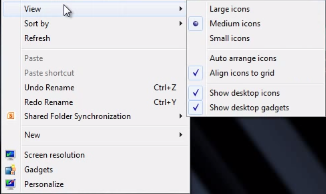
After messing with the sizes of your desktop icons, using this desktop menu is an easy way to return the desktop icons to their normal size. To do this, select “Medium icons.”
What’s your preferred desktop icon size? Are you going to sneakily change the size of every desktop icon in the office and earn the title of Prank Master? Do know any other cool ways to customize your desktop? Let us know in the comments.
About the author

Learn more about what L7 Solutions can do for your business.
L7 Solutions
7890 Peters Road Building G102,
Plantation, Florida 33324
Comments